
All-Turn-It Spinner
by Ablenet

Adam
Last Update 9 months ago

Article contents
- Overview
- Who's it for?
- What You Get in the Box
- Setting Up (Step-by-Step)
- Using the All-Turn-It Spinner (with Practical Examples)
- Adjustments and Options
- Troubleshooting
- Downloadable Resources
- Warranty
1. Overview
The All-Turn-It Spinner is a switch-activated spinner that helps children and adults with diverse needs join in games, learning activities and turn-taking. When you press the built-in switch (or an external 3.5mm switch) the arrow spins for a short preset time and then stops randomly, just like rolling a die or using a game spinner.
The device includes two overlays, a clear cover disc and a pointer arrow, making it easy to adapt for board games, dice-based activities, matching games, trivia, choice-making and classroom routines. It’s sturdy, easy to set up and helps everyone take part, including learners who cannot physically spin a traditional game spinner.
2. Who's it for?
This device is helpful for:
- Teachers and classroom staff
- Therapists supporting early cause-and-effect or turn-taking
- Parents and carers
- Disabled learners who access activities via switches
- Anyone who needs predictable, simple switch activation during games
3. What You Get in the Box
The box includes:
- All-Turn-It Spinner unit
- Large dice overlay
- Small dice overlay
- Spinner post and arrow
- Clear plastic disc
- Dry-erase marker
- 2 × C (LR14) batteries
If any of these items are missing, please contact Inclusive Support.
4. Setting Up (Step-by-Step)
Install the Batteries
- Turn the spinner over.
- Remove the screw from the back panel.
- Insert two C batteries, matching + and –.
- Replace the panel and screw.
Fit the Overlays
- Remove the clear disc and arrow.
- Place the small overlay on the spinner wheel, aligning the square cut-out.
- Replace the arrow and clear disc.
- Place the large overlay on top, matching its tabs to the slots.
Tip: If using the large overlay alone, flip the small overlay to its blank side for better contrast.
Using the Built-in Switch
- Press the large built-in switch to spin.
Using an External Switch
- Plug your 3.5mm switch into the jack on the side.
- Press the switch to spin.
Important behaviour:
- Spins last under 10 seconds (factory preset).
- Repeated or held-down activation will not change the result.
- After each spin, the device ignores input for a short time so the result can be read.
Optional: Wireless Switch Control
(Jelly Beamer receiver/transmitter not included.)
- Remove back-panel screws.
- Open the panel.
- Plug the wireless receiver cable into the internal switch jack.
- Place the receiver in the shaped compartment.
- Close the panel and reattach screws.
Using the Stand
- Pull the legs out from the back to stand the spinner upright.
5. Using the All-Turn-It Spinner (with Practical Examples)
The spinner can act as:
- A one-die replacement
- A two-dice replacement
- A board-game spinner
- A “draw-a-card” alternative
- A configurable overlay board for learning or choice-making
Examples from the manual
- Commercial board games (e.g., Monopoly, Backgammon, Sorry!, Life). See table on page 6.
- Candyland: Place colour/picture cards around the platform (diagram on page 7).
- Twister: Create a colour/body-part overlay (diagram on page 7).
- Dice games: Chicago, Matterhorn, Wipe Out! (pages 8-9).
- Maths games: Add, subtract, multiply, divide using dice overlays (page 10).
- Matching games: Use pictures or stickers on blank overlays (page 10-11).
- Trivia games: Letters on the large overlay + categories on the small overlay (page 10-11).
- Choice-making: Write children’s names or activities on the overlay (page 11).
- Turn-taking: Use names to decide who goes next (page 11).
6. Adjustments and options
- Use blank overlays with dry-wipe markers.
- Attach lightweight items, photos or symbols using reusable adhesive.
- Make your own matching or trivia boards.
- Use larger segments for learners with low vision.
7. Troubleshooting
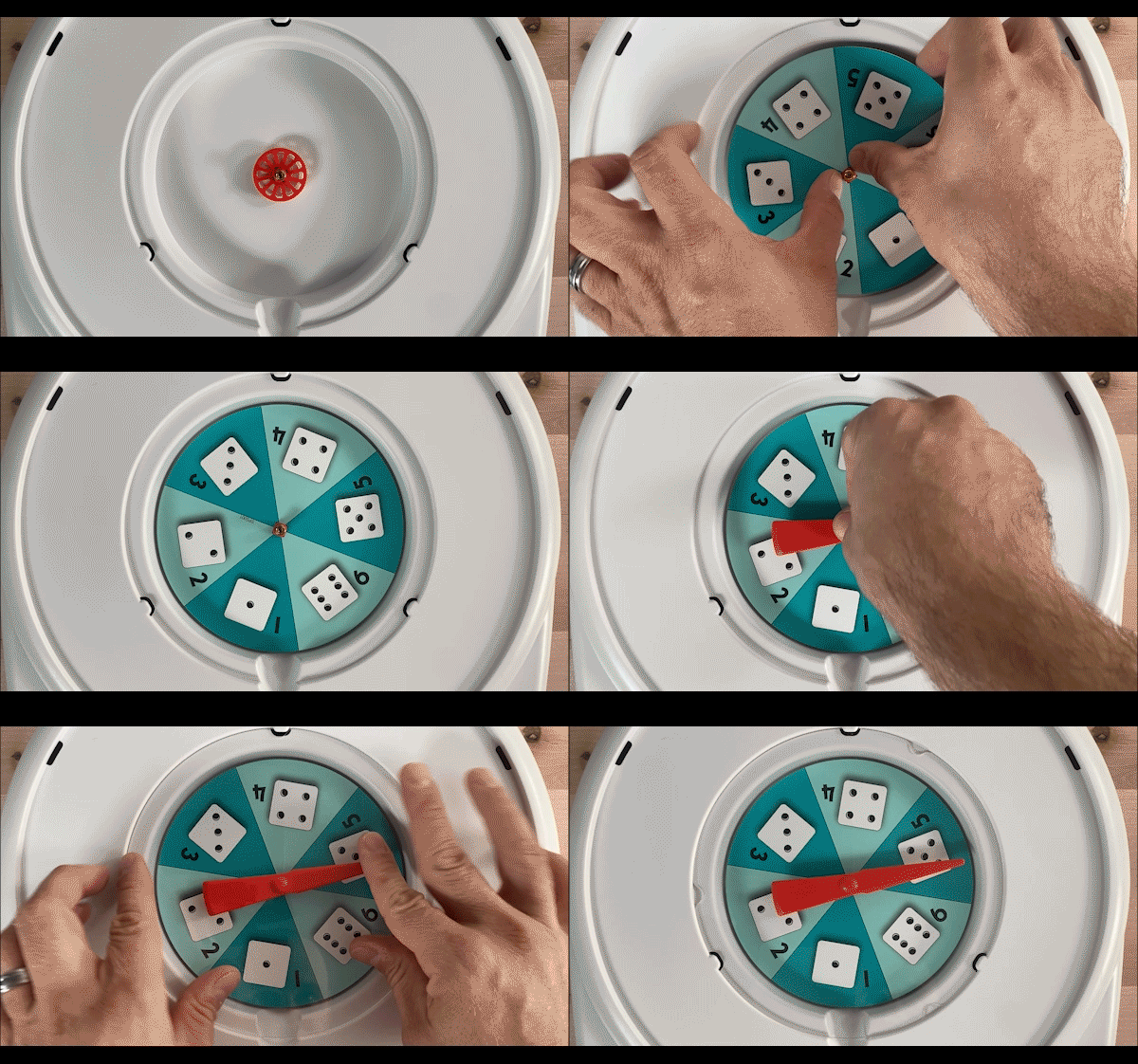
If you find your All-Turn-It Spinner won't spin when you press the red button (or an external switch) you may need to adjust the centre disk or plastic cover.
To install the centre disk, spinner, and clear plastic cover, please review these steps or view the animated GIF to watch this process.
- Push down firmly with two fingers on the centre disk, press close to the spindle to ensure that the disk is firmly in place.
- Next, put the spinner on the spindle and press down gently.
- Then, place the clear plastic over so that the tabs line up with the grooves.
- Finally, twist the plastic clockwise a quarter turn until it clicks into place.
8. Downloadable Resources
9. Warranty

If any part of this article was unclear, or you think there is something missing (e.g. extra steps, examples or images), let us know and we'll update the article:
Support article feedback form